

comet dashboard launches a local browser dashboard. Switch between Classic and Native to view active and archived Changes, task progress, acceptance results, risks, artifacts, and Git summaries. The plugin center provides Personal Memory and Project Knowledge management.
The following is a demonstration that can be directly operated. The demonstration is completely isolated from your project.
Interface Preview
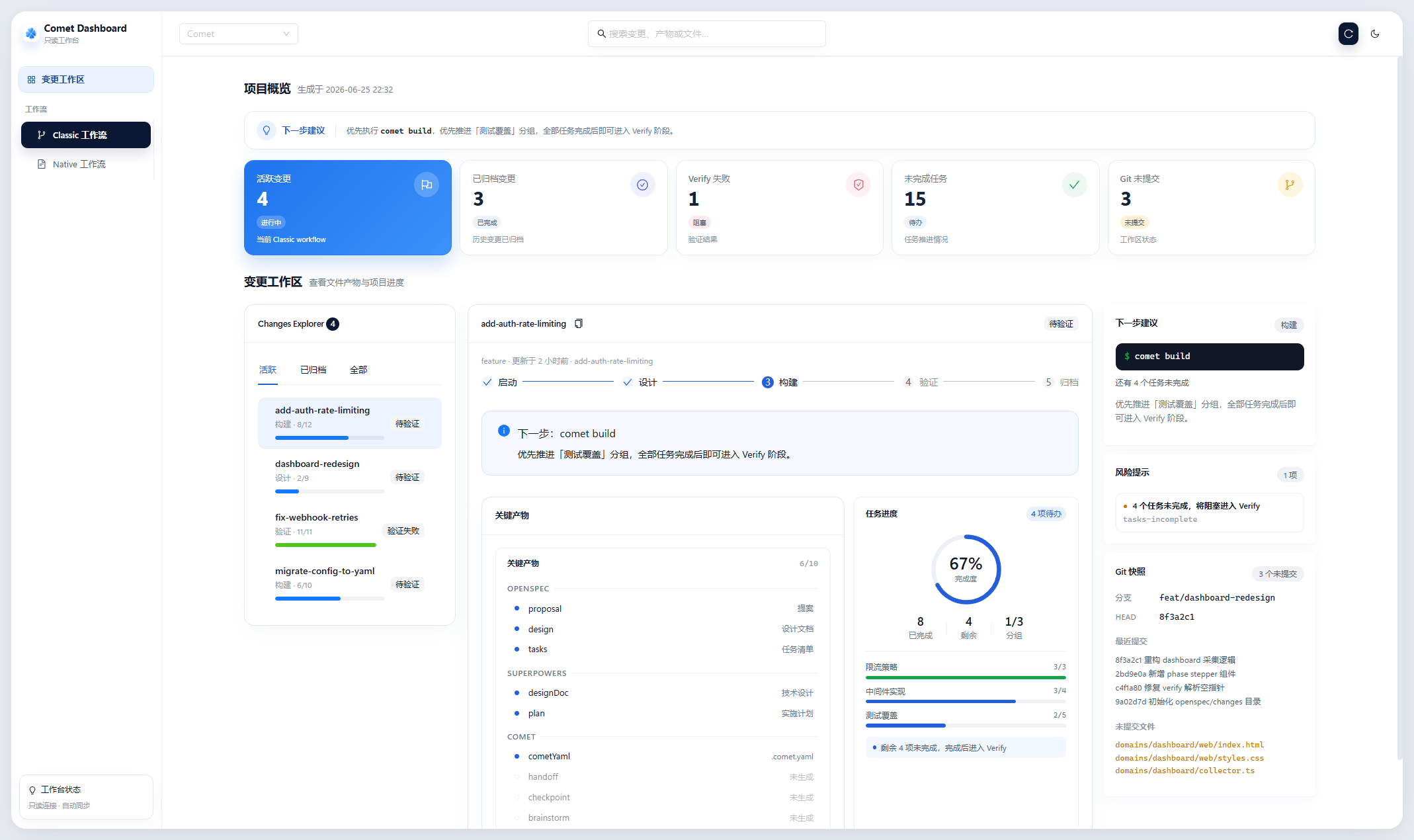
Bright Color Mode
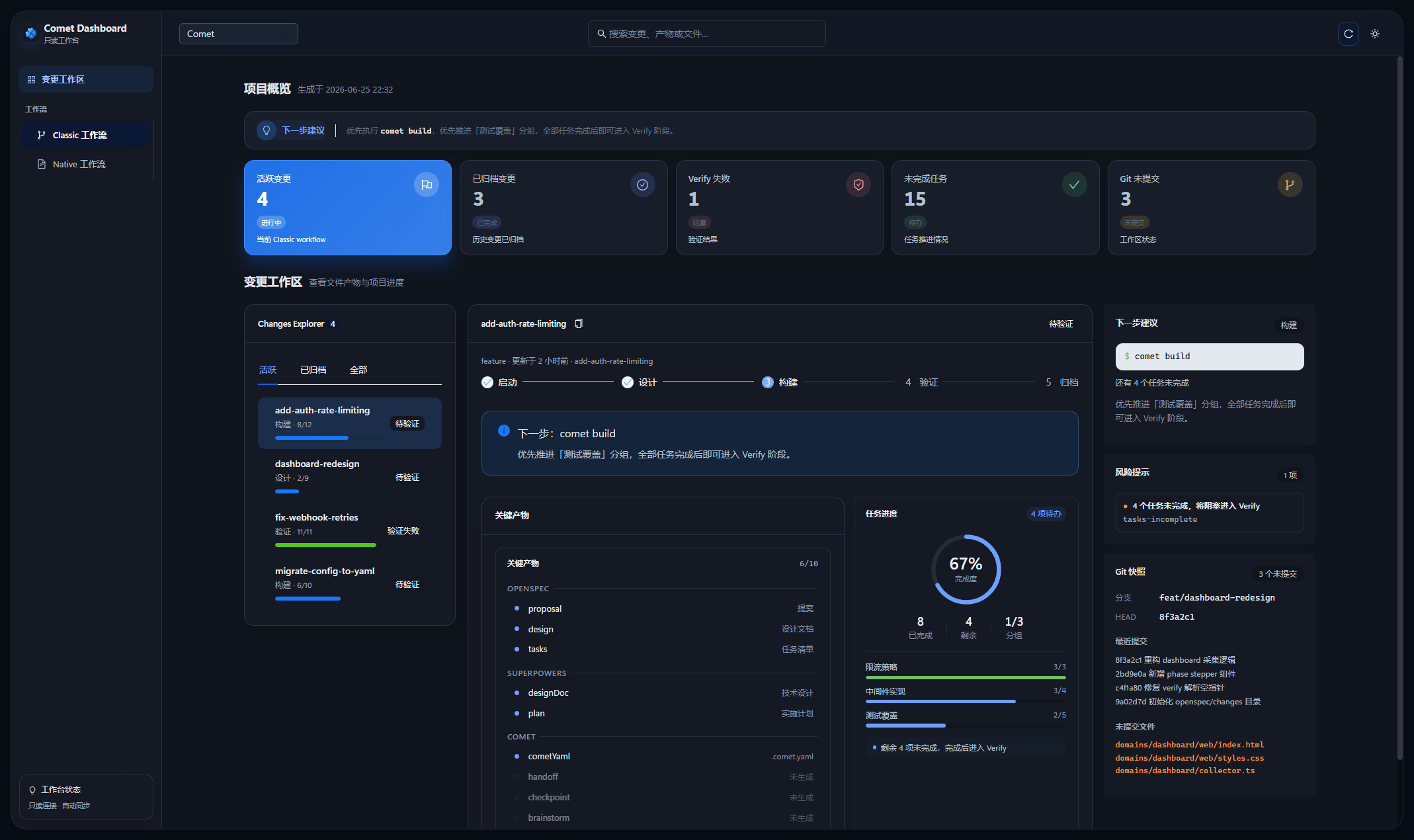
Dark mode
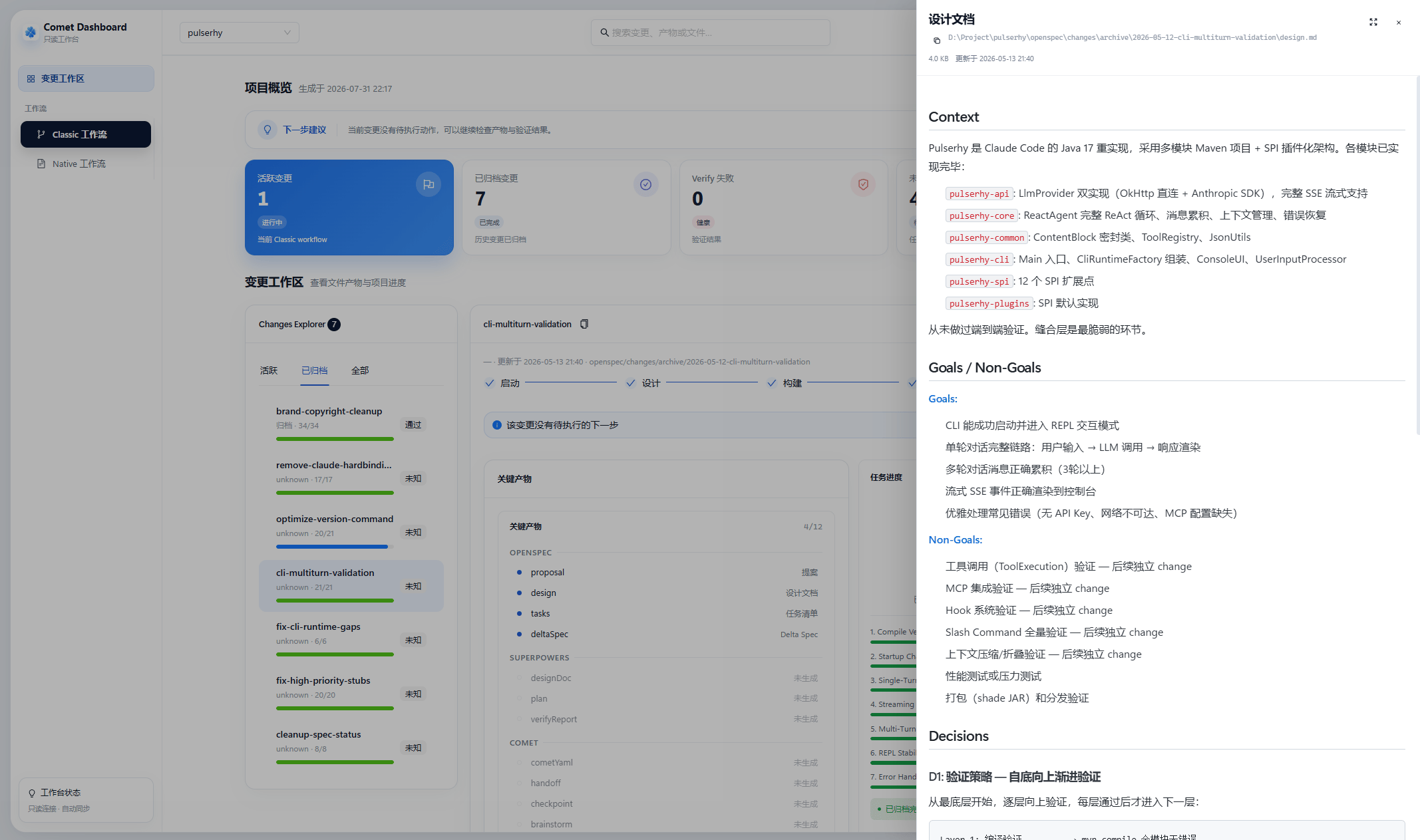
Markdown Product Preview
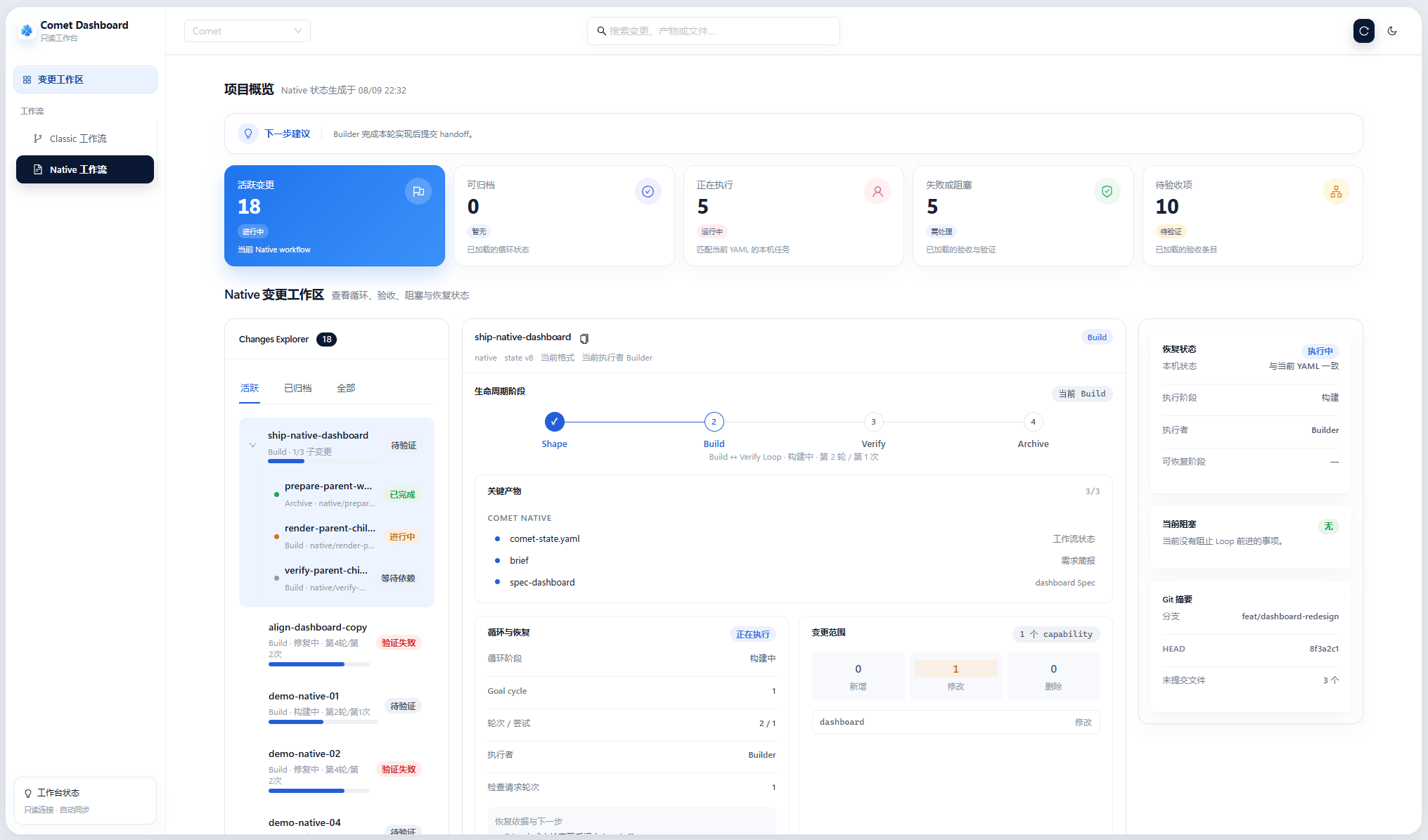
Supervisor Change and sub-changE
Start
Run in the project root directory:http://localhost:4321. Use --port < port > to modify the port, and use --no-open to only start the service.
The service binds only to
127.0.0.1 for local access. Viewing workflows does not modify Changes.”Classic and Native”
The Classic/Native switch in the upper left corner determines the current workspace. The two views share Change Explorer, Detail area, status sidebar and product preview, and the contents of each remain displayed separately.
After selecting a Change, you can view the current stage, task or acceptance progress, next steps, risks and related products. The complete diagnosis is still based on
comet status or comet native status --details.
Supervisor Change and Git worktree
The Dashboard will scan the Git worktrees that have been registered in the current repository and retain the branch or directory labels of each workspace. Native Supervisor Changes show child completion progress, counting verified, integrated, and archived children as complete and marking children that need re-verification separately. Expand a parent Change and select a child to view its phase, workspace, dependencies, and acceptance status. The Dashboard discovers and displays workflows; Native Runtime handles worktree creation, task progression, and verification.Product Preview
Clicking on a generated product will open the Markdown preview drawer. Preview support- Title, list, table, task list and code highlighting;
- “Mermaid diagram;
- Structured tables of
.comet.yaml, handoff and checkpoint; - User-readable products of Classic and Native.
Personal Memory and Project Knowledge
The Dashboard separates current records from history and provides add, correct, and forget actions. The Project Knowledge corpus page lists only Markdown used for retrieval; code, configuration, and test evidence appears in record details. Retrieval results support scrolling and detail previews. Knowledge corrections use a centered editor that preserves drafts if saving fails. The Project Memory tab on the Project Knowledge page is a read-only view where you can browse, search, inspect, and delete project memories the Agent wrote; the recently-used list shows when the memory index was last delivered to the Agent. Project memories are written by the Agent at the end of a task throughcomet knowledge remember; the Dashboard offers no manual creation entry.
Theme, refresh and demonstration data
- Use the top toolbar to switch between light and dark themes; Select to save in the current browser.
- The Dashboard automatically refreshes every 30 seconds, or you can click on the toolbar to refresh it immediately.
- Adding “
?demo” after the address can load demonstration data without reading the actual Change
Use boundaries
Workflow views remain read-only and hide absolute paths, raw logs, and local Runtime files. Use/comet, /comet-native, and the corresponding CLI to advance, repair, verify, archive, or otherwise change workflow state. Memory and knowledge management in the plugin center updates the respective stores.
If the collection of a certain workflow fails, the Dashboard will truthfully display the error while continuing to show another workflow.
Next step
- comet dashboard command - Complete command options
- comet status - View active changes in the terminal
- Native Workflow - Understanding Native Status and Recovery
- Supervisor Change](/en/native/supervisor-change) - Multi-session Collaboration and sub-change